Two Quick Edits That Make Coffee Shots Stand Out
Contrast and color temperature tweaks can bring out crema and foam in your own phone photos, no canned filter required.
By Dakota Foster3 min read
A picture of a crisp rosetta or a luxuriously thick layer of crema can almost always be made stronger with a few minutes in an editing app. Sure, you could throw on a preset filter, but the result will blend in with countless other images that carry the same canned look. Do the editing yourself and your feeds will show more of your own eye. For most well-composed, properly lit phone shots, one or two small tweaks are enough, and applying them takes less time than waiting for an app to load.
If your phone has no photo editor installed, plenty of free options work well. Two solid free choices are Photoshop Express and Snapseed.
Push the Contrast
Photography's central illusion is depth, and it relies on a clear separation between light and dark areas. When that separation is weak, the illusion breaks down and the viewer notices they are staring at a flat screen. Stronger contrast, especially in the darker regions, can make an image feel like a space you could walk into.
Look for the contrast control in your app's adjustment menu, the same place you'll find settings such as exposure, tint and shadows. Slide the contrast far up, then far down, exaggerating both directions. You'll probably settle on a modest change; push too far and the whites will clip.
In practice, I often get better results by adjusting the shadows (labeled "blacks" in some tools) rather than contrast alone. Cell cameras tend to capture highlights reasonably well, so lifting the shadows is an efficient way to add contrast.
Below, compare a version adjusted only for contrast with one adjusted only for shadows.
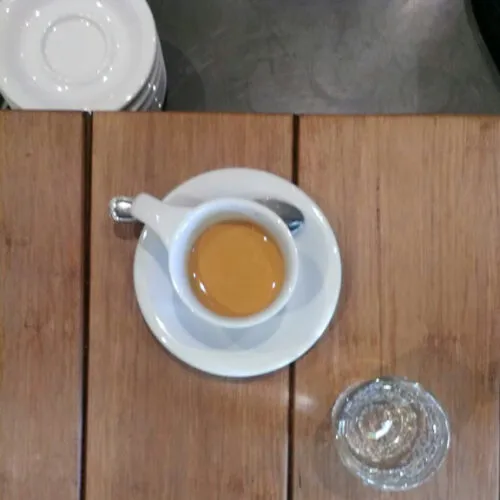
The photo as shot.
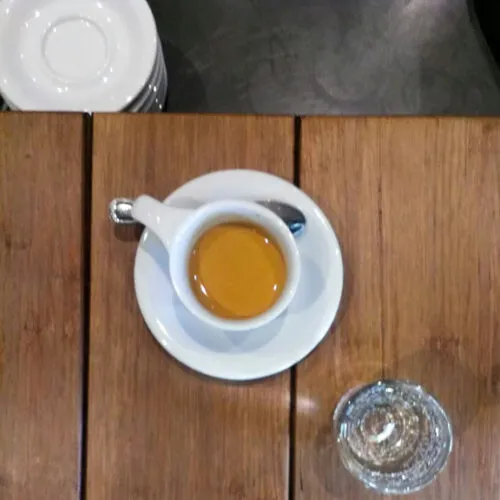
Contrast.
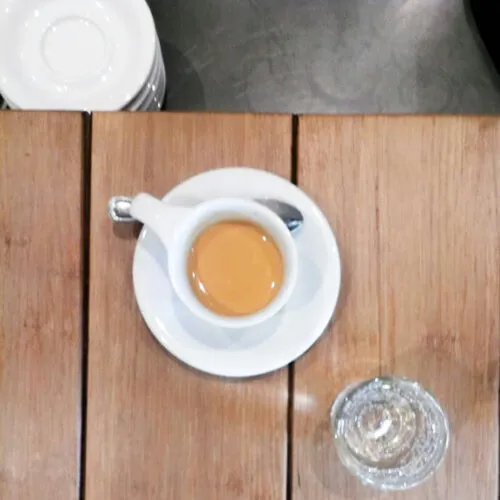
Shadows.
Dial In the Temperature
In photographic terms, temperature describes the wavelength of the light reaching the camera's sensor. Back when film ruled, stock balanced for daylight produced a sickly yellow-orange cast under tungsten bulbs and a queasy blue-green under fluorescents. That was unpleasant enough in a portrait. Get the temperature wrong and foam can take on a fungal green. Even cheap phone cameras now correct to a reasonable temperature on their own, so this kind of ruinous color shift is uncommon. Cafés, though, can still trick the sensor, particularly around the bar.
Consider a white cup lit by a large window behind it while fluorescent lights sit behind the photographer. The result might be a lovely background with a greenish cup, or a properly white cup set in a café that looks like Mars. Worse still, the sensor can glitch and send the whole frame purple or red. More often the camera compromises, producing a strangely gaudy look.
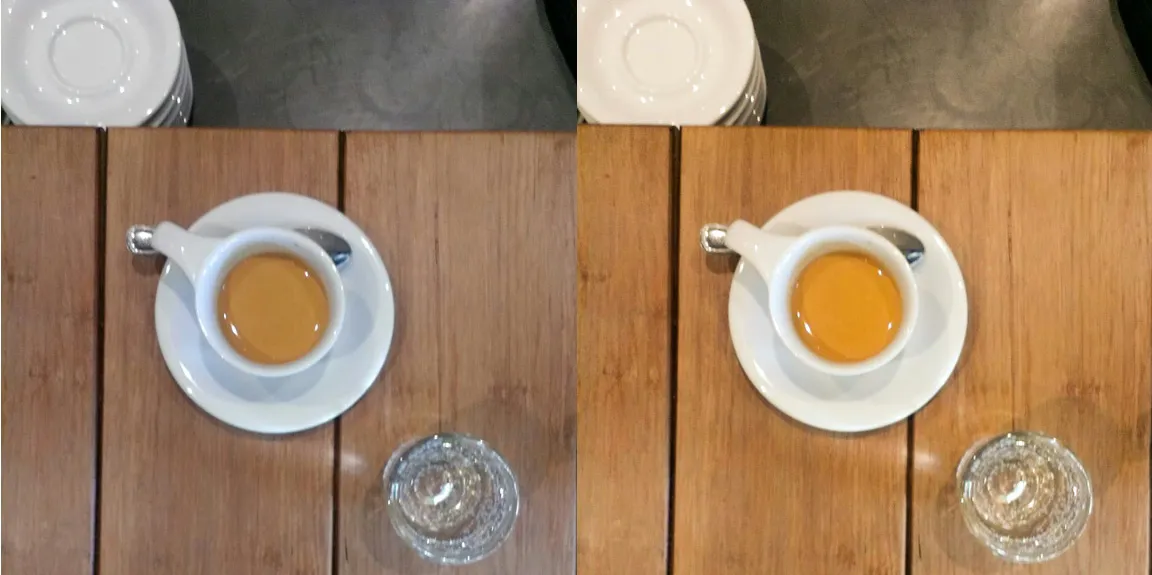
In your app, locate the temperature slider (frequently labeled "warmth") and move it along the scale in both directions; the effect can feel almost psychedelic. The change is usually small, but the impact can be considerable. In one photo, for example, I felt the image ran a little blue, giving a harsh tone to wood that should have looked rich, so I warmed it up, then raised the contrast.
The photo as shot.
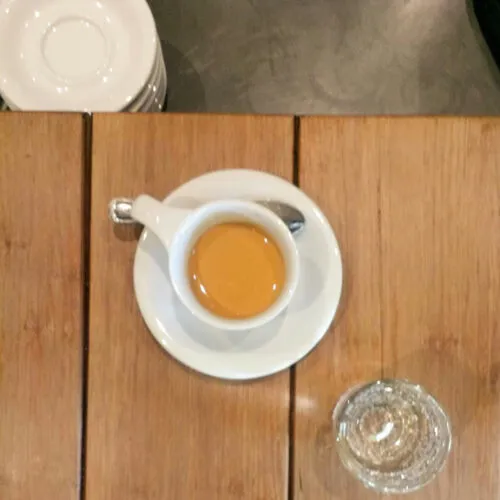
A "warmer" photo.
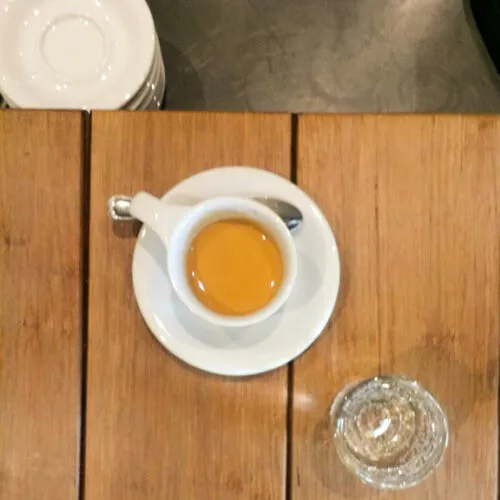
Warmer and increased contrast.
Experimenting with temperature also teaches you a lot about how light shapes your photos and which spots in a café yield the best images.
After you've worked with contrast and temperature, sample the app's other adjustments. Some you'll try once and abandon; others will give you precise control and a distinctive look. Skip the tired filter for a "boost," and you end up with an image that looks natural yet stands out.